
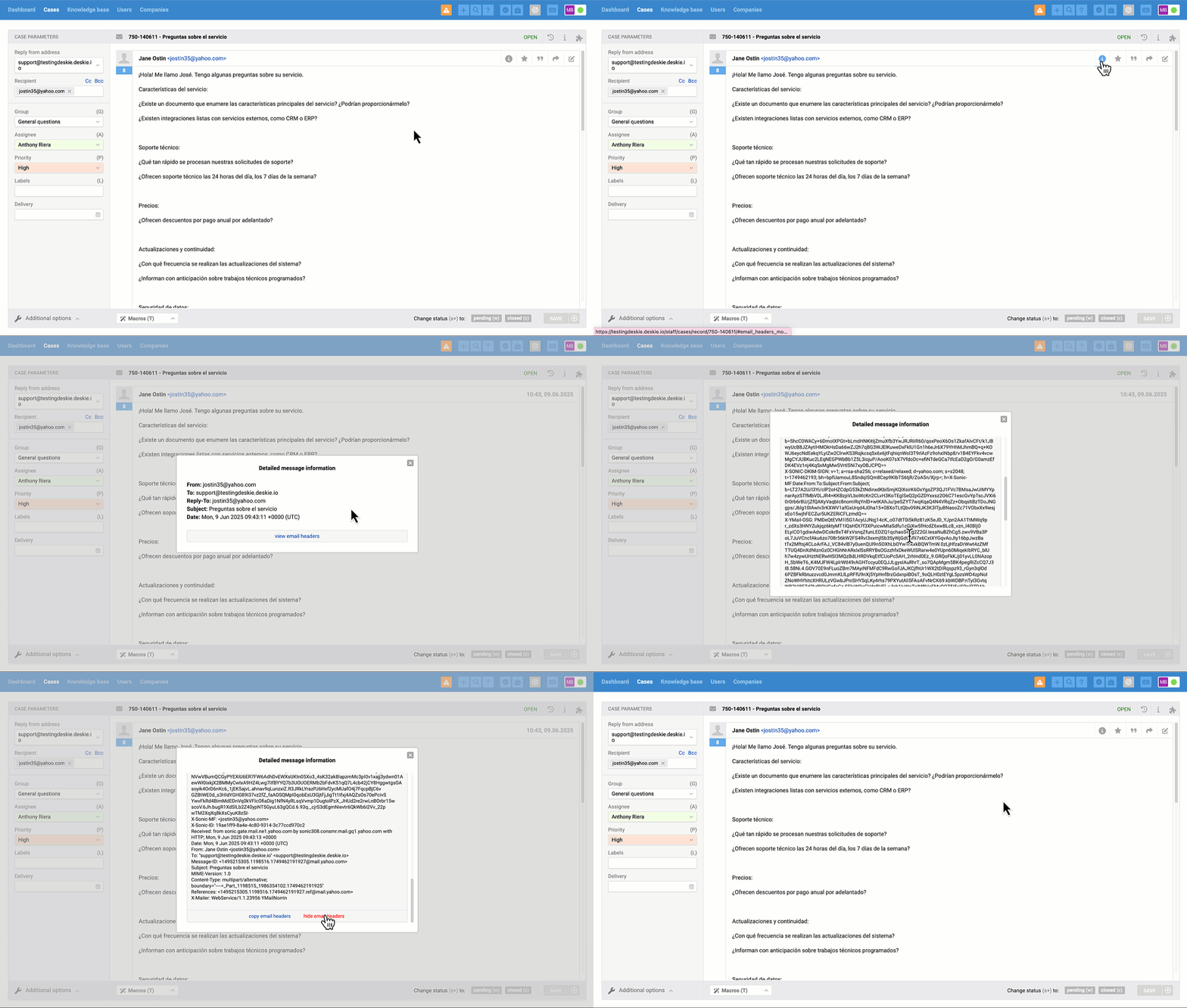
The icon for viewing email headers appears when you hover over a message. In the modal window, you’ll immediately see the key details, and you can also click a button to view the full set of headers.
Usage examples
1) Customers send cases, and you have lots of rules that change the group and the mailbox used to send the agent’s reply, but sometimes you need to quickly check which mailbox the customer originally wrote to.
2) You receive an email with a request that requires you to verify the sender’s identity before doing anything, for example changing the admin login or sharing confidential data. An attacker can spoof the email address in the From field, but the headers let you check DKIM and see which domain is actually specified there.
3) You forward a customer’s reply to an external contractor, they respond, but it is not clear whether they replied only to you or also included the customer. The headers help you quickly see who the message was sent to.
P.S. You can view email headers both for new messages and for those that arrived before this option was introduced 😉